

Special Deals
Free Trials


Special Promotions















Knowledgebase: DirectAdmin
DNS Settings
This section contains essential information about making DNS changes to your web site. Please read this document thoroughly. Topics include an important message for beginners, a short DNS tutorial, an explanation (with examples) of: A, CNAME, NS, and MX records, and how to change DNS settings.
Important Message for Beginners
The ability to change the DNS configuration of a web site is an important feature for many people. However, incorrect DNS modifications can take an entire web site down for an extended period of time. This is because DNS changes aren't instant (see the Tutorial below). If you make a mistake, it is possible that nobody will be able to connect to your site (including yourself). If you fix the mistake, it may take up to 72 hours for the repair to take effect.
There are several things you can do to prevent mistakes:
- Read this document thoroughly.
- Make sure you understand what A, CNAME, NS, and MX records do.
- Contact your web host for additional help and guidance.
- Don't make a major change without assistance.
With a little bit of practice, you will find that making DNS changes is very simple.
DNS Tutorial
DNS (Domain Name Servers) tell computers how to find each other over Internet. When you type an address in your browser, your ISP (Internet Service Provider) checks with it's domain name server (DNS) to determine where to send you.
http://www.domain.com ---> Check with DNS ---> DNS says domain.com = 192.168.0.1 ---> You are taken to web site.
Why does this happen?
It happens because your domain name won't always have the same IP address. Each server on the Internet has an IP address (a numerical address like a phone number). Every time you change web hosts, you are changing servers (and therefore changing IP addresses).
Domain name servers keep a record of your domain name and what IP address (server) it should point to.
Why must I put my web host's name servers (DNS) in my domain record?
As you learned above, name servers tell the Internet how to find you. When you edit the name servers in your domain record, you are telling the Internet which name server provides the most up-to-date directions. If you don't change the name servers in your domain record (let's say you use your old web host's DNS), then your web site will point to a server that isn't hosting your domain. Or, if the old web host deleted you from their DNS, your domain wouldn't work at all.
Why does it take so long for my site to start working?
When you change web hosts (addresses) or register a domain for the first time, the new DNS information has to reach every other name server (DNS) on the Internet. Your site may work in as few as 4 hours, but the average waiting time is 24-72 hours. This delay occurs because most name servers (DNS) choose to periodically check for updates. That is, they aren't "live." Periodic checking is done because constant checking often slows down the server.
Why is my domain pointing to my old host, even though I cancelled my account with them?
There could be several reasons for this:
- Their name servers are still in your domain record.
Solution: Update your domain record with your new web host's name servers (DNS). - They haven't removed your domain record from their name servers.
Solution: Ask them to remove your domain record, or follow the solution in #1 if you have a new web host. - DNS propagation hasn't taken place yet. This will happen even with your new web host's DNS in your domain record.
Solution: Wait 24-72 hours and contact your new web host if the problem persists.
Why can some people reach my new site but I can't?
Their ISP has more up-to-date DNS records than your ISP. Be patient, as your new site will appear within 24-72 hours.
Is there some way to view/access my site even though the DNS hasn't changed yet?
Yes. You may access your site at http://ip.address/~username and you may access the control panel at http://ip.address/config. If you don't know the IP address of the server, please ask your web host for it.
Changing DNS Settings
At the main control panel menu, click the "DNS Menu" icon to access the DNS settings.
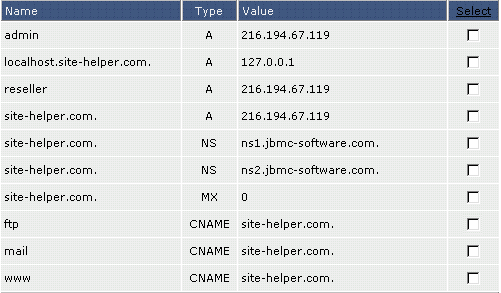
Above is an example of the DNS settings for site-helper.com. The next sections provide information on changing A, CNAME, NS, MX, and PTR records. In the meantime, it is important to understand how the control panel handles hostnames.
Important: There are two ways to enter a hostname:
- The full hostname followed by a period: full.hostname.com.
- The subdomain alone: full
For example, the first record in the table above can read:
admin A 216.194.67.119 or
admin.site-helper.com. A 216.194.67.119
Both records do the exact same thing. The sections below may discuss only one method but either is acceptable.
Hint: If you are unsure how to enter a record, look at the existing records in the table for guidance.
Records Explained: A, CNAME, NS, MX, and PTR.
A RECORDS
Address (A) records direct a hostname to a numerical IP address. For example, if you want mycomputer.yourdomain.com to point to your home computer (which is, for example, 192.168.0.3), you would enter a record that looks like:

Important: You must put a period after the hostname. Do not put periods after IP addresses.
CNAME RECORDS
CNAME allows a machine to be known by one or more hostnames. There must always be an A record first, and this is known as the canonical or official name. For example:
yourdomain.com. A 192.168.0.1
Using CNAME, you can point other hostnames to the canonical (A record) address. For example:
ftp.yourdoman.com. CNAME yourdomain.com.
mail.yourdomain.com. CNAME yourdomain.com.
ssh.yourdomin.com. CNAME yourdomain.com.
CNAME records make it possible to access your domain through ftp.yourdomain.com, mail.yourdomain.com, etc. Without a proper CNAME record, you will not be able to connect to your server using such addresses.
- Entering a CNAME record
If we wanted home.site-helper.com to point to site-helper.com, we could enter the record in two ways:
The first method allows you to simply enter the subdomain. Do not put a period after the subdomain name.
The second method requires you to enter the entire hostname, followed by a period.
NAMESERVER (NS) RECORDS
NS records specify the authoritative nameservers for the domain.
Important: Changing NS records may cause your site to stop working. There is generally no need to change NS records.
- Entering a NS record
The first step is to delete the old NS records from the table above.
Then, enter two new nameservers records. Be sure that the nameserver hostname is followed by a period, as in this example:
Be sure to put a period after the nameserver hostname in a NS record (ns1.newnameserver.com. and not ns1.newnameserver.com ).
MX RECORDS
Free e-mail services such as everyone.net require that MX changes be made in order for their software to work. This change allows mail destined for your domain to be directed to their server. Please note that changing MX records will prevent your current POP3 accounts, forwarders, autoresponders, and mailing lists from functioning.
To change the MX record, first access the "E-Mail Menu" from the control panel. Then, click the "MX Records" icon.
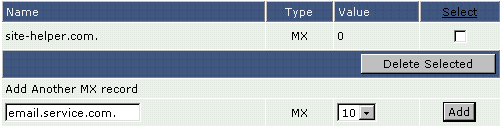
First, delete the old MX record by clicking the checkbox to next to the record name and click "Delete Selected." There should now be no MX records listed.
Next, type in the hostname, followed by a period, given to you by the e-mail provider. Then select the priority level (usually 10) from the dropdown box on the right. The priority level will also be given to you by the e-mail provider. Click "Add."
Note: Be sure to put a period at the end of the hostname.
To restore the original MX settings, enter yourdomain.com. and priority 0 after deleting the other MX record.
PTR RECORDS
Pointer records (PTR) are used for reverse lookups. For example, to make 192.168.0.1 resolve to www.yourdomain.com, the record would look like:
1.0.168.192.in-addr.arpa PTR www.yourdomain.com.
Note: The IP address is reversed in the first field. Please use a period after your hostname (second field).
The “in-addr-arpa” method is the most frequently used.
Important: PTR records are effective only if your site has its own IP address.
Important: PTR records are only effective if named.conf is manually edited and the proper zone information is added. This can only be done by a root user (the server Admin).
Credits: http://www.site-helper.com/dns.html